How to Check Whether a PDF Tool Uploads Your File
How to check whether a PDF tool uploads your file: open DevTools, switch to the Network tab, run the tool, and watch for requests that carry the file. Unlike a privacy policy, it's a claim you can verify yourself.

"Your files never leave your browser" is a claim, not a guarantee — and our position is that you shouldn't have to take a vendor's word for it, ours included. The good news is that this is one of the very few security properties an ordinary user can check directly: open the Network tab, run the tool, and watch whether your file goes anywhere. That check doesn't care how the tool is built. It only cares whether a request carrying your document appears. Most of Utilitly's tools are built to pass it, a handful are not, and this post is about how to tell the difference for yourself.
The Core Problem: Where Do Your PDFs Go When You Upload Them?
Every time an employee uploads a document to a traditional online PDF tool, they create an untracked data footprint. Legacy document platforms rely entirely on server-side processing architectures. When a user clicks "Convert," the file is transmitted over the internet to a remote cloud server, processed in a third-party environment, and temporarily cached on external drives.
[User Browser] ───( Internet Transmission )───► [Third-Party Cloud Server] ───► [Cached File Storage]
This structural dependency introduces severe corporate data governance vulnerabilities. If a platform experiences a server breach, or if its automated data retention cleanup script fails, confidential corporate files remain exposed on external hardware. For industries managing personally identifiable information (PII), protected health information (PHI), or financial balances, this workflow violates basic data protection and SOC 2 compliance standards. The data exposure happens the exact moment the file leaves the local browser environment.
Background: What is WebAssembly (WASM) and How Does It Run in the Browser?
This section is general technology background, not a description of how Utilitly is built — what we actually use is spelled out immediately after it. WebAssembly comes up constantly in discussions of in-browser processing, and it's worth understanding on its own terms before we explain why it turns out to be the wrong thing to focus on.
WebAssembly, or WASM, is a low-level binary code format standardized by the W3C WebAssembly Core Specification, designed to execute complex operations at near-native speed directly inside web browsers. Instead of relying on slow JavaScript interpretation or risky remote cloud computing instances, web developers can compile high-performance backend languages like C++, Rust, or Go into a compact .wasm file. This file is delivered to the user's browser just like an image or a stylesheet.
[Browser Process]
 ├── DOM (UI Layer)
 ├── V8 Engine (JavaScript)
 └── [WebAssembly Virtual Machine] ◄── Isolated Sandbox
      ├── Linear Memory (ArrayBuffer)
      ├── Execution Stack (Isolated)
      └── Network Access: DENIED by default
Once loaded, the WebAssembly engine runs inside an isolated browser runtime sandbox. It accesses the local CPU and memory allocated to that specific browser tab, running independently from the host operating system.
The reason so many document operations fit in a browser tab at all is structural. Merging or splitting a PDF doesn't require understanding the document's contents — you parse the object tree, splice the page objects, and re-serialize. No rasterization, no re-encoding, no layout engine. That's cheap enough to do in JavaScript on a phone. Converting a PDF to Word, or running high-accuracy OCR, is a different class of problem entirely: it needs heavyweight layout inference and models that don't fit this execution model, which is exactly why those tools work differently.
Local Sandboxing vs. Remote Server Processing
To understand exactly why this framework protects data privacy, look at how system resources and data streams shift between these two execution frameworks.
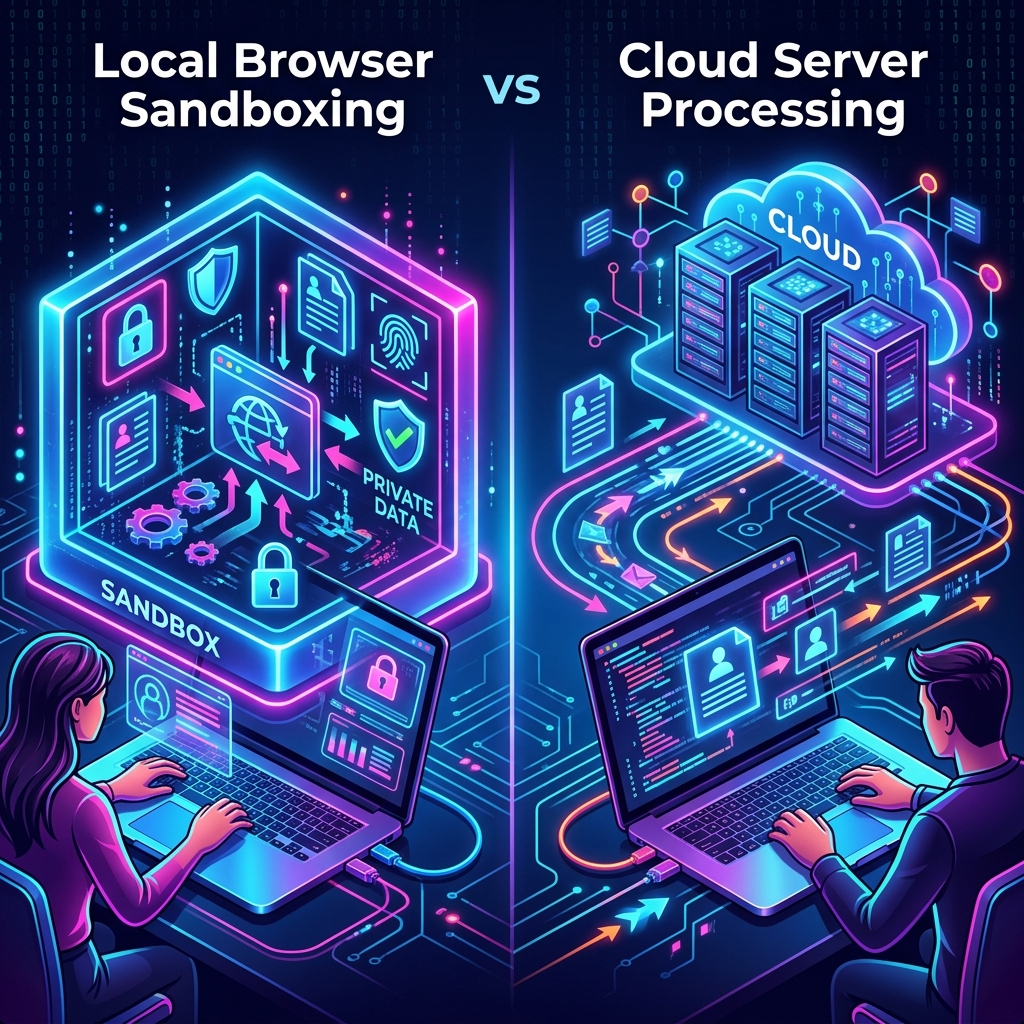
| Architectural Vector | Traditional Cloud Processing | Client-Side (In-Browser) |
|---|---|---|
| Data Transmission | Uploads raw file binary over WAN networks | Zero network file upload; binary data remains local |
| Data Storage Risk | Temporary server caching, log risks | No files ever touch an external drive or database |
| Network Dependency | High bandwidth required for uploads/downloads | Low bandwidth; requires only a one-time engine download |
| Compliance Viability | Adds a third-party processor you must assess, contract, and audit | No external processor to assess, contract, or audit |
| Execution Performance | Queued on server; dependent on server load | No queue or upload wait; scaled by local hardware |
The Architecture of a Client-Side PDF Converter
Inside a true client-side app, your browser tab does the job a server would otherwise do. When you open one of these tool pages, the code needed to process files is downloaded like any other script and cached, which is why the second visit starts faster than the first. That download is the only network activity the tool requires.
[File dropped] ──► [ArrayBuffer in tab memory] ──► [parse · rebuild · serialize] ──► [Blob URL download]
When a PDF is dropped onto the processing canvas, the page reads it into an ArrayBuffer — memory belonging to that tab, which the browser discards when the tab closes. The library then parses the document's object tree, performs the structural change you asked for, and serializes a new document into another buffer. The practical ceiling is the memory the browser is willing to give one tab, which is why a 500MB scan can fail on a phone and succeed on a laptop; there is no server-side tier that changes this.
JavaScript then wraps the resulting bytes in a local object URL (blob:https://...), letting you save the file without a single network packet carrying your document. That last part is the claim worth testing, so here's how.
How to Check Whether a PDF Tool Uploads Your File
Because any landing page can claim that files never leave the browser, engineers and security teams must know how to inspect the underlying software behavior. You do not need an external security clear certification to verify that your documents remain private; you can audit the data streams directly using standard native developer tools.
Checking the Network Tab in Browser Developer Tools
- Open your web browser (Chrome, Firefox, Safari, or Edge) and navigate to the local utility tool page.
- Right-click anywhere on the interface and select Inspect or press F12 to open the Developer Tools panel.
- Switch directly to the Network tab and toggle the All or Fetch/XHR filter view.
- Drag and drop a sample PDF file into the application processing window and run the conversion.
- Monitor the network log layout line items closely during processing.
┌────────────────────────────────────────────────────────────────────────────────────────┐
│ DevTools - Network Tab                                                      [ Pres. ]  │
├────────────────────────────────────────────────────────────────────────────────────────┤
│ Name               │ Status │ Type     │ Initiator │ Size    │ Time    │ Waterfall     │
├────────────────────┼────────┼──────────┼───────────┼─────────┼─────────┼───────────────┤
│ 4e91a2c8.js        │ 200    │ script   │ (index)   │ 412 kB  │ 61 ms   │ █             │
│ pdf.worker.min.mjs │ 200    │ script   │ chunk.js  │ 1.1 MB  │ 88 ms   │  █            │
│                    │        │          │           │         │         │               │
│ ─── you drop your file here, and click Merge ───                                       │
│                    │        │          │           │         │         │               │
│ ──► [ NOTHING. NO NEW REQUEST APPEARS WHILE THE FILE IS PROCESSED ] ◄──                │
└────────────────────────────────────────────────────────────────────────────────────────┘
That is the whole test, and the important part is the empty half. Before you drop a file you'll see the page's own JavaScript chunks load, and on tools that render page previews you'll also see the pdf.js worker script fetched from a CDN — that one is library code, not your document. Then you run the operation and the log should stay still. A genuine client-side tool issues zero POST, PUT or fetch requests carrying binary payloads while your file is being processed. If a new request appears the moment you click the button, your file is in it.
Conclusion: The Local-First Future of Document Management
The verification steps above aren't a hypothetical exercise — they're what our team actually runs against every new tool before it ships, and what we'd encourage you to run against any "private" web tool that touches sensitive files, ours included. Trust that's checkable in a Network tab is worth more than trust that's asserted in a privacy policy.
Open DevTools on any Utilitly tool and watch the Network tab yourself while it processes a file — that's the real proof, not this article. You should see no file upload on the browser-only tools listed at the top of this page, and you should see one on the four that use an external processing service. If what you observe ever contradicts what a tool page claims, the page is what's wrong.
Frequently Asked Questions
Are online PDF tools safe to use?
It depends entirely on where the processing happens, not on the tool's branding. A tool that uploads your file to a third-party server creates a data breach and retention risk you cannot audit. A tool that processes the PDF inside your browser's own memory never puts the document on the wire, so it can't be intercepted, logged, or retained by the service provider — and you can confirm which kind you're using in about thirty seconds with the Network tab.
Do client-side PDF tools work the same way in every browser?
The building blocks — the File API, ArrayBuffers, Web Workers, Blob URLs — are standard across current Chrome, Firefox, Safari, and Edge, so a tool built on plain JavaScript generally behaves the same everywhere. Tools that rely on more exotic prerequisites are less portable: anything needing SharedArrayBuffer, for example, requires the site to send Cross-Origin-Opener-Policy and Cross-Origin-Embedder-Policy headers to establish a cross-origin isolated context, which is easy to break. Utilitly's browser-side tools do not depend on that.
Can a website read my files without me uploading them?
A website's JavaScript can only read a file you explicitly select or drag in — the File API requires user action, and there is no way for a page to silently reach into your filesystem. Once a file is selected, though, whether that data then gets network-transmitted depends entirely on the site's code, which is exactly why checking the Network tab matters more than trusting a privacy policy.
Does client-side processing work on mobile browsers?
Yes — mobile Safari and mobile Chrome run the same code as their desktop counterparts. The practical constraint on a phone is available memory rather than the runtime: the file is held in the tab, so a very large document may process slowly or run out of room where a laptop would cope fine.
How can I independently verify a "no upload" claim from a PDF tool?
Open your browser's Developer Tools (F12 or right-click → Inspect), switch to the Network tab, run the tool against a sample file, and watch for outbound POST/PUT/Fetch requests carrying binary payloads. If the only network activity is the initial page load and the tool's own scripts — with nothing new firing at the moment your file is processed — that's a verifiable, not just asserted, zero-upload architecture.