How to Resize an Image for Instagram
How to resize an image for Instagram using Instagram's own size rules: crop it to a shape Instagram accepts, resize it to 1080 pixels wide, and keep the file small. All three steps run in your browser.
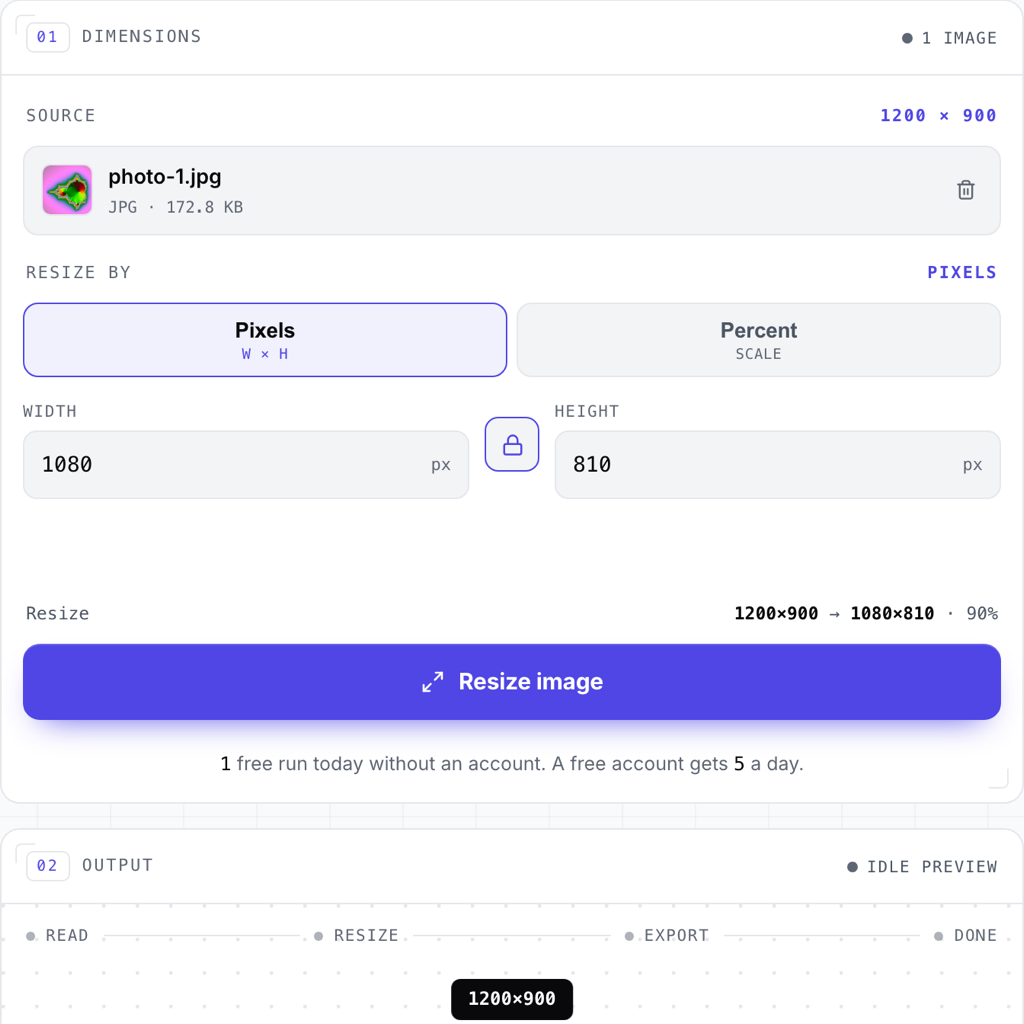
To resize an image for Instagram, make it 1080 pixels wide with a shape between 1.91:1 (landscape) and 3:4 (portrait). Crop it to that shape first, then resize it to 1080 pixels wide with the aspect ratio locked, and save it as a JPG. That is the whole job. The rest of this guide explains where those numbers come from, what Instagram does when a photo doesn't fit them, and how to do each step without installing anything.
Getting the size right yourself matters for one reason: if you don't, Instagram decides for you. A photo that is too wide or too tall gets cropped to fit, and you don't choose which part is cut. A photo much wider than 1080 pixels gets scaled down on Instagram's side. Doing both steps before you upload means the post looks the way you framed it.
What size should an Instagram post be?
Instagram's article sets two rules for photos in a post. The first is width: Instagram shares photos at up to 1080 pixels wide, and if you upload a wider one, it sizes it down to 1080. Photos between 320 and 1080 pixels wide are kept at their original resolution as long as their shape is supported, and anything narrower than 320 is enlarged to 320. The second is shape: the aspect ratio has to be between 1.91:1 and 3:4. At 1080 pixels wide, that means a height between 566 and 1440 pixels. A photo outside that range is cropped to fit.
| Shape | Ratio | Size at 1080 wide |
|---|---|---|
| Widest landscape | 1.91:1 | 1080 × 566 |
| Square | 1:1 | 1080 × 1080 |
| Tallest portrait | 3:4 | 1080 × 1440 |
The article gives a range, not a list of sizes. The square row is simply the 1080 width at 1:1, which sits inside that range, and any shape between the top and bottom rows works too. Many guides quote 4:5 (1080 × 1350) as the portrait size. That still works, because 4:5 is inside the range, but Instagram's page gives 3:4 as the tallest shape it accepts.
How to resize an image for Instagram, step by step
Three small tools do the three steps. Each runs in your browser tab, so the photo stays on your computer the whole time.
- Crop to a shape Instagram accepts: Open the image cropper, add your photo, and pick an aspect ratio: 1:1 for a square post, or 4:3 or 16:9 for landscape. Drag the frame over the part you want to keep, click Crop image, and download the result.
- Resize to 1080 pixels wide: Open the image resizer, add the cropped image, keep Resize by set to Pixels and the lock closed, and type 1080 as the width. The height follows on its own. Resize and download.
- Make the file smaller: Open the image compressor, add the resized image, choose JPG as the format and Light or Balanced as the level, and download. That file is the one to upload.
Each of the three counts as one run toward the daily free limit: 1 free run a day without an account, 5 with a free account. The full sequence therefore needs a free account.
Crop to the right shape first
Cropping comes before resizing because resizing with the ratio locked keeps whatever shape the image already has. If the shape is wrong, a locked resize just gives you a smaller wrong shape, and an unlocked one stretches the picture.
The cropper's presets are Free, 1:1, 4:3, 16:9 and Original. For a square post, pick 1:1 and the frame stays square while you move and resize it. The two landscape presets both sit inside Instagram's range: 4:3 is about 1.33:1 and 16:9 is about 1.78:1, both narrower than the 1.91:1 limit. There is no portrait preset. For a portrait post, use Free and drag the frame taller than it is wide. After the crop, the tool shows the new size in pixels. For the shape to stay inside Instagram's range, the height should be no more than four-thirds of the width (900 × 1200 is exactly 3:4).
The cropper always saves a PNG. That keeps every pixel of the part you kept, but a photo stored as PNG is usually far larger than the same photo as a JPG, which is what the last step fixes.
Resize to exact pixels without stretching
With the lock closed, typing a width sets the height for you, so the picture can't be stretched or squashed. Type 1080 as the width and the height lands wherever the shape you cropped puts it: 1080 for a square, 810 for a 4:3 landscape, about 608 for 16:9.
Shrinking a large photo down to 1080 pixels keeps it sharp, and it is what Instagram would do on its own anyway. Enlarging is different: if the cropped image is narrower than 1080 pixels, scaling it up can't add detail that isn't there. Instagram keeps a photo between 320 and 1080 pixels wide at its own resolution when its shape is in range, so a smaller image can be uploaded as it is.
The resizer also has one-click Instagram sizes: choose Preset, then Square post (1080 × 1080), Portrait post (1080 × 1440) or Landscape post (1080 × 566). A preset trims the edges to its shape, keeping the centre, and resizes in one step, so you can skip the crop when the middle of the photo is what you want. It tells you how many pixels it will trim, and warns you if your image is smaller than the preset and will be enlarged.
The resizer keeps a JPG as a JPG. Anything else, including the PNG from the cropper, comes out as a PNG.
Keep the file small
The compressor re-encodes the image at the same width and height, so the 1080-pixel size you just set doesn't change. Choose JPG as the output format. Light keeps the most detail, Maximum makes the smallest file, and Balanced sits in between. You see the new file size before you download, so you can try another level if the first one isn't right.
Pick JPG rather than PNG here. PNG is lossless, so the compressor ignores the level for it and it may not shrink much.
Instagram Reels
Reels have their own article, Reel size & aspect ratios on Instagram. It allows any aspect ratio between 1.91:1 and 9:16, with a minimum resolution of 720 pixels, and gives no exact pixel size. The resizer's Reel preset makes a 9:16 image at Instagram's 1080-pixel width, which is 1080 × 1920.
Other sizes: YouTube thumbnails
The same crop-then-resize method works for any platform that publishes its sizes. YouTube's help article Add custom thumbnails asks for a 16:9 thumbnail with a resolution of 3840 × 2160 pixels and a minimum width of 640 pixels, uploaded in an image format such as JPG or PNG. The upload size limit depends on where you upload from, and that page lists the current limits. In the cropper, pick 16:9. In the resizer, type 3840 as the width if the image is at least that wide, or choose Preset and YouTube Thumbnail, which trims the image to 16:9 and sizes it to 3840 × 2160. A smaller image is fine as long as it is at least 640 pixels wide, because enlarging it won't add detail. For Shorts, the same page asks for a 9:16 thumbnail at 2160 × 3840 pixels, at least 640 pixels tall, and the resizer's Shorts thumbnail preset trims and sizes the image to that.
Is the photo uploaded anywhere?
No. The cropper, resizer and compressor all draw the image onto a canvas inside your browser tab and save the result from there. You can check this yourself. Open your browser's developer tools, go to the Network tab, and run any of the three. No request carries the image.
Frequently Asked Questions
What size should a picture be for Instagram?
1080 pixels wide, with a height between 566 and 1440 pixels. That is the 1.91:1 to 3:4 aspect-ratio range Instagram's Help Center gives for photos in a post. A square post is 1080 × 1080. Instagram sizes wider photos down to 1080, and keeps photos between 320 and 1080 pixels wide at their own resolution when their shape is in that range.
Why does Instagram crop my photo?
Because its shape is outside the range Instagram accepts. Instagram's Help Center says a photo whose aspect ratio isn't between 1.91:1 and 3:4 is cropped to fit a supported ratio. Crop it yourself before you upload, at 1:1 or another shape inside the range, and you decide which part of the picture is kept.
Does resizing an image for Instagram lose quality?
Making a large photo smaller keeps it sharp, and Instagram would scale it down to 1080 pixels wide anyway. Making a small image larger can't add detail, so it looks softer. If your image is narrower than 1080 pixels, you can upload it at its own size, as long as it is at least 320 pixels wide.