How to Convert JPG to PDF (All Platforms)
How to convert JPG to PDF in any desktop browser, on Mac, Windows, ChromeOS or Linux: one image or several in the order you choose, screenshots, page size and margins, and what to do with HEIC photos.
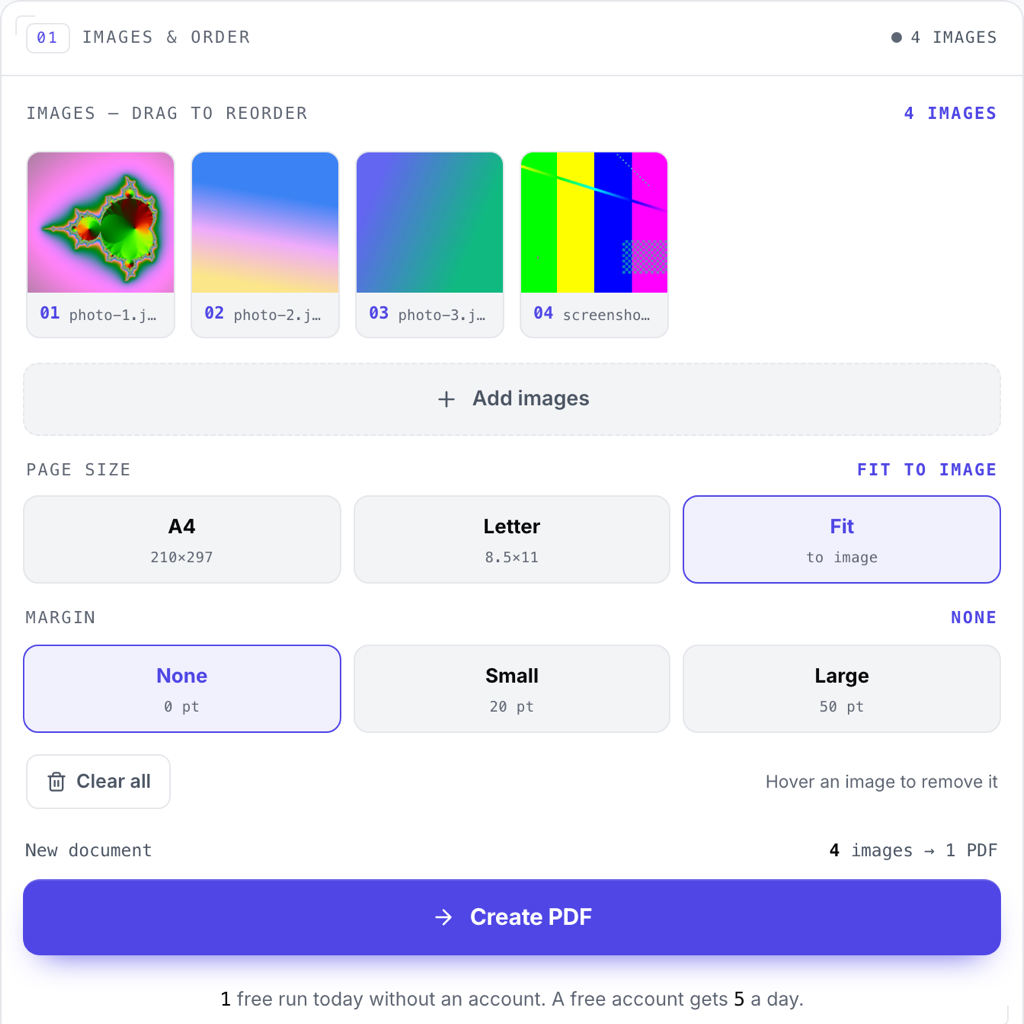
To convert a JPG to PDF, open an image-to-PDF converter in your browser, add the JPG, pick a page size, and download the PDF. The same steps turn several JPGs, or a folder of screenshots, into one PDF with one image per page, in the order you set. A browser tool works the same way on a Mac, a Windows PC, a Chromebook or a Linux machine, because nothing gets installed.
Most people search this because they need one file instead of many: a set of receipts for an expense claim, photographed pages of a document, screenshots for a bug report, or a scan someone sent as a picture when a form wanted a PDF. Converting is quick. The choices that decide how the PDF looks are the page size, the margins and the order, and all three are covered below.
How to convert a JPG to PDF
- Open the converter: Go to Utilitly's image to PDF converter in any desktop browser. There is nothing to install.
- Add the JPG: Drop it in the box or click to choose it. You can add several at once.
- Pick a page size and margin: Choose Fit, A4 or Letter, and a margin of None, Small or Large.
- Create and download: Click Create PDF, check the preview, and click Download.
Each conversion counts as one run toward the daily free limit: 1 free run a day without an account, 5 with a free account. Several images in one PDF are still one run.
How to combine several JPGs into one PDF, in your order
Add all the images in one go, or add more after the first batch. Each one becomes its own page, and the pages follow the order of the thumbnails. Drag a thumbnail to move it, and hover over one to remove it. You don't need to rename files to get the order right, because the thumbnail order is what counts.
The images don't all have to be JPGs. PNG, WebP, BMP, GIF, SVG and AVIF can go in the same PDF. An animated GIF becomes its first frame.
Screenshots to PDF
Screenshots are usually saved as PNG files, and PNG is stored in the PDF pixel for pixel, with no lossy compression, so small text stays as crisp as it was on screen. Add the screenshots, drag them into order, and create the PDF.
With Fit, each page is the exact shape of its screenshot, so a mix of wide and tall screenshots gives a mix of page shapes. That reads well on screen. If the PDF is going to be printed or attached to something with a fixed page size, choose A4 or Letter instead, so every page is the same size.
Page size and margins
Fit makes each page exactly the size of its image, with one image pixel becoming one point, which is 1/72 of an inch. On screen this looks natural. On paper a large photo makes a very large page: an image 3000 pixels wide gives a page about 42 inches wide. If the PDF will be printed, use a standard page size.
A4 and Letter pages are always portrait. Each image is scaled to fit inside the page, minus the margin, keeping its shape, and centred. A landscape photo therefore sits in the middle of the page with space above and below. A small image is enlarged to fill the page, which can make it look soft. Fit avoids that, because it never scales the image.
Margins are None, Small (20 points, about 7 mm) or Large (50 points, about 18 mm). With Fit, the margin is added around the image, so the page grows. With A4 or Letter, the margin is taken from inside the page, so the image shrinks a little.
HEIC photos: what to do instead
HEIC is the one common photo format this converter can't take. The conversion relies on the browser to open each image, and browsers can't decode HEIC. If you add one, the tool names the file in its error message instead of skipping it silently. Open the photo in the app you normally view it in, export or save a copy as JPG, and add the JPG.
Already have PDFs, or a page the wrong way round?
If some of your scans are already PDFs, there's no need to turn them back into images. Convert the pictures first, then merge the PDFs into one file, in the order you want. If a page comes out sideways, rotate that page in the finished PDF. The rotation is saved in the file, so it stays put wherever the PDF is opened.
Frequently Asked Questions
Does converting JPG to PDF reduce the quality?
No. The converter puts the JPG's original bytes into the PDF instead of compressing the picture again, so every pixel is the same as in your file, and the PDF is roughly the size of the JPGs you added. Page size only changes how large the image is drawn on the page. A small image enlarged to fill an A4 or Letter page can look soft, and Fit avoids that.
Can I convert several JPGs into one PDF?
Yes. Add all of them and they become one PDF with one image per page, in the order of the thumbnails. Drag a thumbnail to change the order, and hover over one to remove it. PNG, WebP and other formats can go in the same PDF.
Can I convert JPG to PDF without uploading the image?
Yes. The converter builds the PDF inside your browser tab with pdf-lib, an open-source JavaScript library, so the image isn't sent to a server. To check, open your browser's developer tools, go to the Network tab, and convert an image: no request carries it.