Email Attachment Too Large? How to Compress a PDF Down to Size
Email attachment too large? Most providers cap attachments at 20–25 MB, and the images inside a PDF are almost always what pushes it over. Here is why that happens, what compression can and cannot recover, and exactly how Utilitly's two compression levels behave.
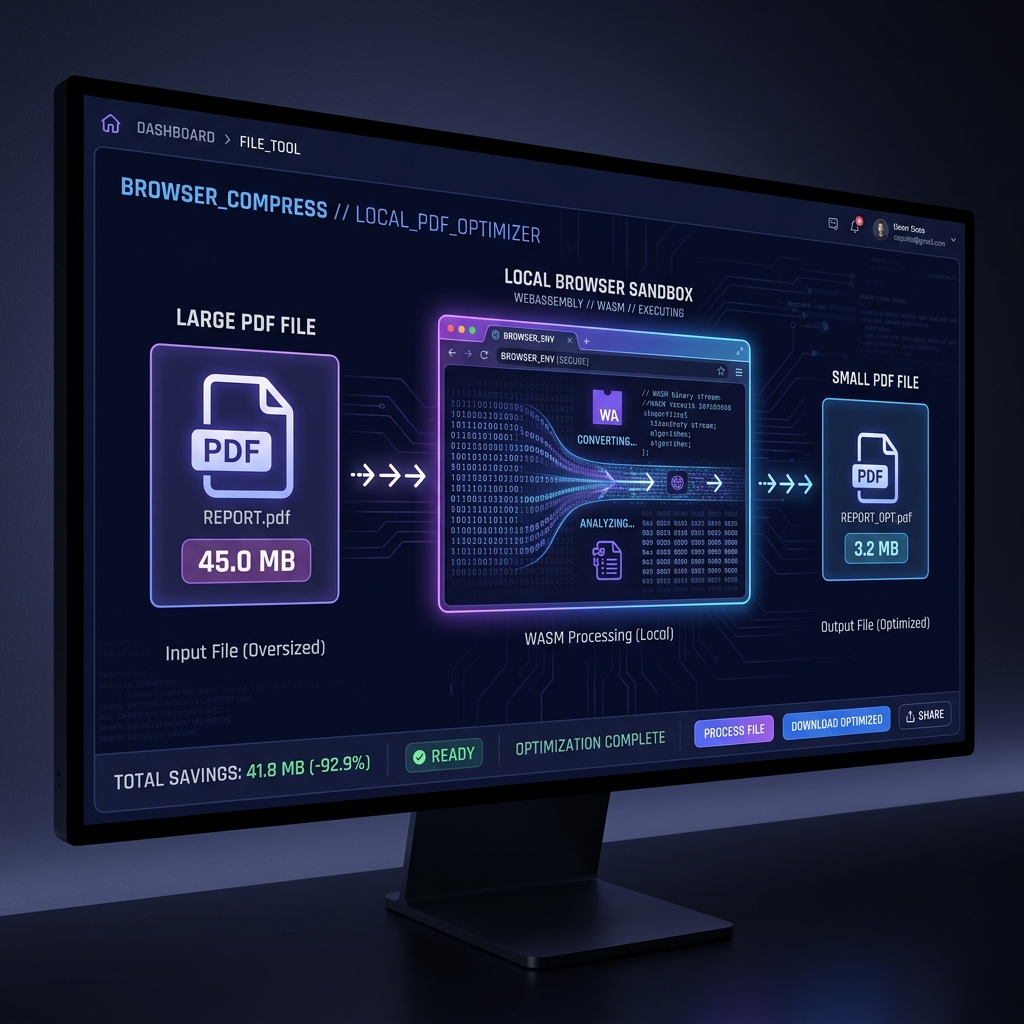
Gmail caps attachments at 25MB. A single-page invoice exported from InDesign at 300 DPI can hit 8MB on its own; a 20-slide proposal deck routinely clears 40MB. The gap between those numbers is where most people end up searching for a PDF compressor at 11pm before a deadline. This article explains where the weight in a PDF actually sits, what a compressor can realistically recover, and what Utilitly's two compression levels do to your file.
Whether you are a freelancer trying to send a design portfolio over Gmail, a legal assistant attaching a contract to a case management portal, or a student hitting an upload cap on a university submission system, the problem is the same: your PDF is too large, and you need to know which part of it to give up.
Why Is My PDF File So Big?
A PDF is not a simple container of text. It is a composite binary format that can simultaneously embed high-resolution raster images, embedded font subsets, vector graphic path commands, JavaScript action scripts, invisible XMP metadata payloads, and color profile ICC tags. When a document is assembled by a design application like Adobe InDesign or exported from a browser print dialog, it embeds assets at their full native resolution—often 300 DPI or higher—because the export engine prioritizes visual fidelity over file size.
The result is a single-page invoice that weighs 8MB, or a 20-slide business proposal that hits 45MB, because every embedded logo and background graphic is stored at print resolution even when the recipient will only ever view it on a 72 DPI screen. The wasted data is invisible to the reader but creates a massive payload that breaks attachment limits.
[Original PDF Binary]
├── Embedded Fonts (subset)    →  ~0.8 MB
├── High-DPI Raster Images     →  ~12.4 MB  ← Primary bloat source
├── Vector Path Commands       →  ~0.3 MB
├── ICC Color Profiles         →  ~0.4 MB
└── Hidden XMP Metadata        →  ~0.1 MB
                                  ─────────
Total Unoptimized Payload      →  ~14.0 MB
Common Mistakes: Why "Print to PDF" Creates Bloated Files
A frequent user workaround for large files is opening the document and using the operating system's "Print to PDF" dialog. This is an architectural mistake. Print spoolers are designed to guarantee visual fidelity on physical paper, not to optimize digital transmission. When you "Print to PDF," the OS often rasterizes vector text into high-resolution images, embeds full font payloads rather than subsetting them, and strips out internal document structure. The resulting file is frequently larger than the original and loses its searchable text properties.
Does Compressing a PDF Reduce Quality?
Because the bulk of a large PDF is raster image data, that is what a compressor goes after. It decodes the embedded images and re-encodes them at a lower quality setting and, at more aggressive levels, a lower resolution. This is lossy: the discarded image detail is gone from the output file, and re-compressing the result again will not bring it back.
Text and vector graphics are a different story. They are stored as font glyph references and path commands rather than pixels, so they are not re-rendered and stay crisp no matter how hard you compress. This is the single most useful thing to know about PDF compression:
- A text-heavy document — a contract, a report, a paper typeset from a word processor — is already compact and has little to give up. Do not expect a dramatic reduction, because there is not much image data to remove.
- An image-heavy document — a scanned stack of pages, a design portfolio, a photo-laden brochure — is where compression earns its keep, and where reductions well over half are common.
- A scanned document is entirely images, including its "text". Aggressive compression will visibly soften the lettering, because to the compressor those letters are just pixels.
How Utilitly's PDF Compression Works
Utilitly's compressor is a hosted one. When you click Preview & Compress, your PDF is transferred over an encrypted HTTPS connection to a professional compression engine, compressed there, and the smaller file is sent back to your browser as a download. Nothing about that step happens on your own machine, and we would rather say so plainly than let you assume otherwise.
There are two levels, and both of them re-encode images — the difference is how far they go:
- Recommended applies moderate compression. On everyday documents the result is usually hard to tell apart from the original at normal viewing size. This is the right default.
- Extreme compresses much harder, downsampling embedded images to 72 DPI — screen resolution — and stripping non-essential metadata. Use it when getting under an upload limit matters more than image fidelity.
Two practical details worth knowing. The tool accepts PDFs up to 100 MB; anything larger is rejected in the browser before it is sent anywhere. And if compression would not actually make your file smaller — which happens with PDFs that were already optimised — you get your original file back unchanged rather than a bigger one.
Because compression runs on a hosted service, you need to be signed in to a free Utilitly account to use it. Compressing itself is free and is not metered against a monthly allowance.
If the File Must Not Leave Your Device
Some documents should not be uploaded anywhere, and that is a legitimate constraint rather than paranoia. Utilitly's compressor is not the right tool for those, and no amount of encryption-in-transit changes that — the file still leaves your machine.
Most of Utilitly's other PDF tools do run entirely in your browser, with the file read from your device and never transmitted. If your task is one of these, you can do it without the document going anywhere:
| Task | Where it runs | Does the file leave your device? |
|---|---|---|
| Merge, split, rotate, reorder, delete pages | Your browser | No |
| Watermark a PDF, add page numbers | Your browser | No |
| PDF to image, image to PDF, extract images | Your browser | No |
| Compress or convert an image | Your browser | No |
| Compress a PDF | Hosted compression engine | Yes — over an encrypted connection |
| PDF to Office, Office to PDF, advanced OCR | Hosted conversion engine | Yes — over an encrypted connection |
There is also a genuinely local option for reducing an image-heavy PDF: extract the images, compress them in the browser with the image compressor, and rebuild the document with Image to PDF. It is more steps, and you lose any real text in the original, but the file never leaves your machine.
Who Runs Into PDF Size Limits
The need to shrink a PDF without wrecking what is inside it cuts across every industry and professional role:
- Freelancers & Designers: Sending high-fidelity creative portfolios or client proposals via email without hitting the 25MB Gmail or Outlook attachment ceiling.
- Legal & Finance Professionals: Compressing multi-exhibit case files or quarterly financial statements for upload to secure case management or audit portals without violating data governance policies.
- HR & Recruiting Teams: Optimizing candidate application bundles or onboarding document packets that need to pass through corporate email filters with strict attachment size policies.
- Students & Academics: Compressing scanned thesis chapters or image-heavy research papers before submitting them to university portals that enforce strict MB upload caps.
How to Compress a PDF for Email, Step by Step
- Open the tool: Go to the PDF Compress Tool on Utilitly.com and sign in to your free account if you are not already.
- Load your document: Drag and drop your oversized PDF onto the drop zone, or click to browse for it. Files up to 100 MB are accepted.
- Choose a level: Recommended for moderate compression that stays close to the original, or Extreme for the smallest file, which downsamples images to 72 DPI.
- Compress: Click Preview & Compress. Your file is transferred over an encrypted connection, compressed, and returned — typically in a few seconds, longer for large files on a slow connection.
- Check the result before you keep it: The tool shows the before-and-after size. Open the result and confirm the images still look acceptable for what you need. If the size is still too high, try Extreme; if the quality dropped too far, go back to Recommended.
The Short Version
A PDF is usually too large because of the images inside it, and compression works by giving up some of that image detail. Text stays sharp either way. Start with Recommended, check the preview, and reach for Extreme only when you genuinely need to clear a hard limit.
Compress a file with the PDF Compress Tool, or if the document must not leave your device, use one of Utilitly's browser-only tools instead.
Frequently Asked Questions
Will compressing a PDF make the text blurry or hard to read?
Usually not. Real text in a PDF is stored as font glyph references or vector outlines rather than pixels, so image compression does not touch it. The exception is a scanned document, where the 'text' is actually part of an image — there, the Extreme level can visibly soften the lettering, so prefer Recommended for scans you still need to read comfortably.
What is the difference between the Recommended and Extreme levels?
Both re-encode the images inside the PDF; Extreme simply goes further. Recommended applies moderate compression and is usually hard to distinguish from the original on everyday documents. Extreme downsamples images to 72 DPI — screen resolution — and strips non-essential metadata, producing the smallest file at a visible cost to image detail.
Can I compress a PDF to an exact size like 100 KB?
Not directly — there is no target-size field, and the tool does not iterate to hit a number. You choose a compression level and see what you get. A text-heavy document at the Extreme level will often land near 100 KB, while a high-resolution scan may not reach it at all. Check the before-and-after size in the preview to see where you ended up.
Is there a file size limit for PDF compression?
Yes — 100 MB per PDF. Larger files are rejected in the browser before anything is transferred. Because the file is sent to a compression service rather than processed on your device, very large PDFs also take longer to compress on a slow upload connection.
Does my file leave my device when I compress it?
Yes. Compression runs on a professional compression engine rather than in your browser, so the PDF is transferred over an encrypted HTTPS connection and the compressed result is sent back. If a document must never leave your machine, use one of Utilitly's browser-only tools — merge, split, rotate, reorder, delete pages, watermark, and the image tools all run entirely on your device.