Can ChatGPT Edit PDFs?
Can ChatGPT edit PDFs? Yes, through Utilitly's PDF MCP server in the ChatGPT desktop app, which can merge, split, rotate and reorder pages. It runs on your computer, so the file is not uploaded. Here is what that means, and the two-minute setup.
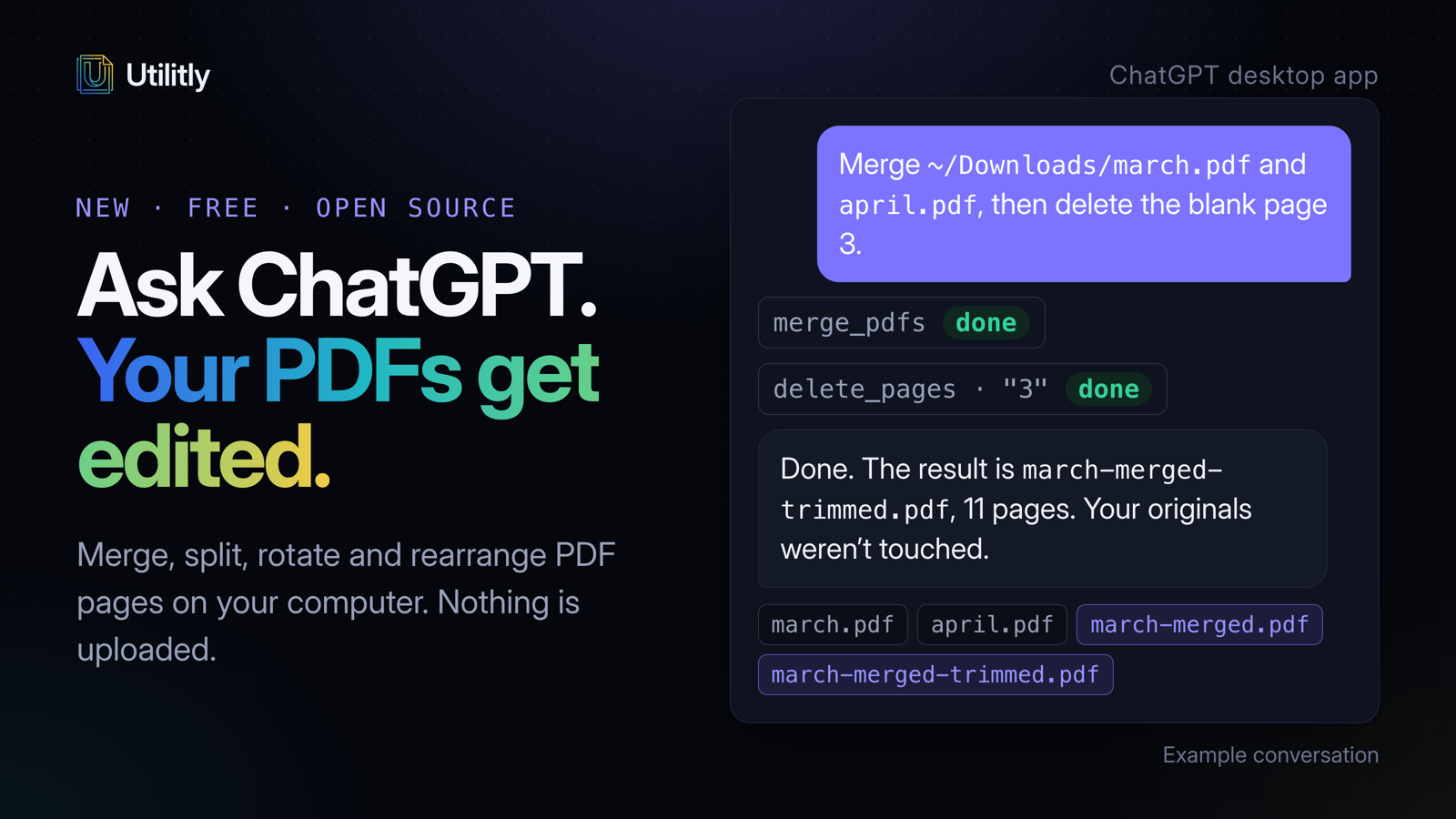
Utilitly's free PDF tools now work inside the ChatGPT desktop app. Ask ChatGPT to merge two PDFs, drop a blank page or fix a sideways scan, and it edits the files on your computer, saving each result as a new PDF next to the original. Nothing is uploaded.
It works through an MCP server, a small program the desktop app runs on your machine. You add it once in the app's settings, which takes about two minutes. It isn't a listing in ChatGPT's app directory, and it doesn't work on chatgpt.com in a browser, which can only connect to servers on the internet.
Key takeaways
- ChatGPT reads PDFs you attach, but it can't change a file on your computer by itself.
- The ChatGPT desktop app can run local MCP servers. With Utilitly's, ChatGPT can merge, split, rotate, delete, reorder and duplicate PDF pages on your computer.
- The PDF isn't uploaded. ChatGPT sends a file path, the server edits the file locally, and ChatGPT gets back the new file's path and page count.
- Setup is one form in the desktop app, or one command in Codex. You need Node.js 22 or newer.
- It's free and open source under the MIT license, with no account and no API key.
Can ChatGPT edit PDFs?
Yes, with an MCP server. On its own, ChatGPT only works on PDFs you attach to a chat: it can read them and answer questions, but it can't change the file on your computer. The ChatGPT desktop app can run MCP servers, small programs that give it new tools. MCP stands for Model Context Protocol, an open standard that lets one server work with many AI apps. Add Utilitly's PDF server and ChatGPT gets eight tools:
| Tool | What it does | New file it writes |
|---|---|---|
pdf_info | Page count, file size, first page size, and whether the PDF is password-protected | None |
merge_pdfs | Combines PDFs in the order given | <first>-merged.pdf |
split_pdf | One file per page range, such as 1-2, 3-end | <name>-part1.pdf, -part2.pdf |
extract_pages | The selected pages as one PDF | <name>-pages.pdf |
rotate_pdf | Turns pages by a multiple of 90 degrees | <name>-rotated.pdf |
delete_pages | Removes pages; at least one has to stay | <name>-trimmed.pdf |
reorder_pages | Puts every page in a new order | <name>-reordered.pdf |
duplicate_pages | Adds copies after each page or at the end | <name>-duplicated.pdf |
The server never overwrites anything. Input files are only read, and if a result's name is already taken, the new file gets -2, -3 and so on. It doesn't compress, convert or OCR files; for those, use the tools on utilitly.com.
Can ChatGPT read a PDF?
Yes. Attach the PDF to a chat and ChatGPT reads its text, so it can summarize the document, answer questions about it or pull out a table. It works best when the PDF has real text you could select and copy. A scanned PDF is only pictures of pages, and ChatGPT may misread or miss text in it.
Reading and editing are separate jobs. Attaching a PDF lets ChatGPT read a copy, but it gives ChatGPT no way to change the file on your computer. The Utilitly server works the other way round: it changes files, and it never shows ChatGPT what's inside them. It reports a PDF's page count, file size, first page size and whether it's locked, and nothing more. So for "summarize this contract", attach it. For "merge these three contracts and drop page 4", use the server.
How do you make a PDF readable for ChatGPT?
Give ChatGPT real text, an unlocked file, and only the pages it needs. Most "ChatGPT can't read my PDF" problems come down to one of three things:
- It's a scan. The pages are pictures, so there's no text to read. PDF Text Extractor (Basic plan) reads up to five pages of an English scan in your browser and gives you a text file to attach instead. Advanced OCR (Pro plan) turns a longer scan, in 35+ languages, into a searchable PDF; it sends the file over an encrypted connection to a processing service.
- It has a password. Remove it with Unlock PDF (Basic plan), which runs in your browser, as long as you know the password.
- It's too big. Attach only the part you need. Split PDF pulls out a page range for free in your browser, or ask ChatGPT to do it with the server: "Extract pages 1-20 of ~/Documents/handbook.pdf."
Do you have to upload a PDF to ChatGPT?
To have ChatGPT read a PDF, yes. To have it edit one with the Utilitly server, no. When you attach a file, it's uploaded to OpenAI so ChatGPT can read it. When ChatGPT uses the MCP server, it sends only the file's path, such as ~/Desktop/report.pdf. The server opens the file on your computer, makes the change, and writes the result next to the original.
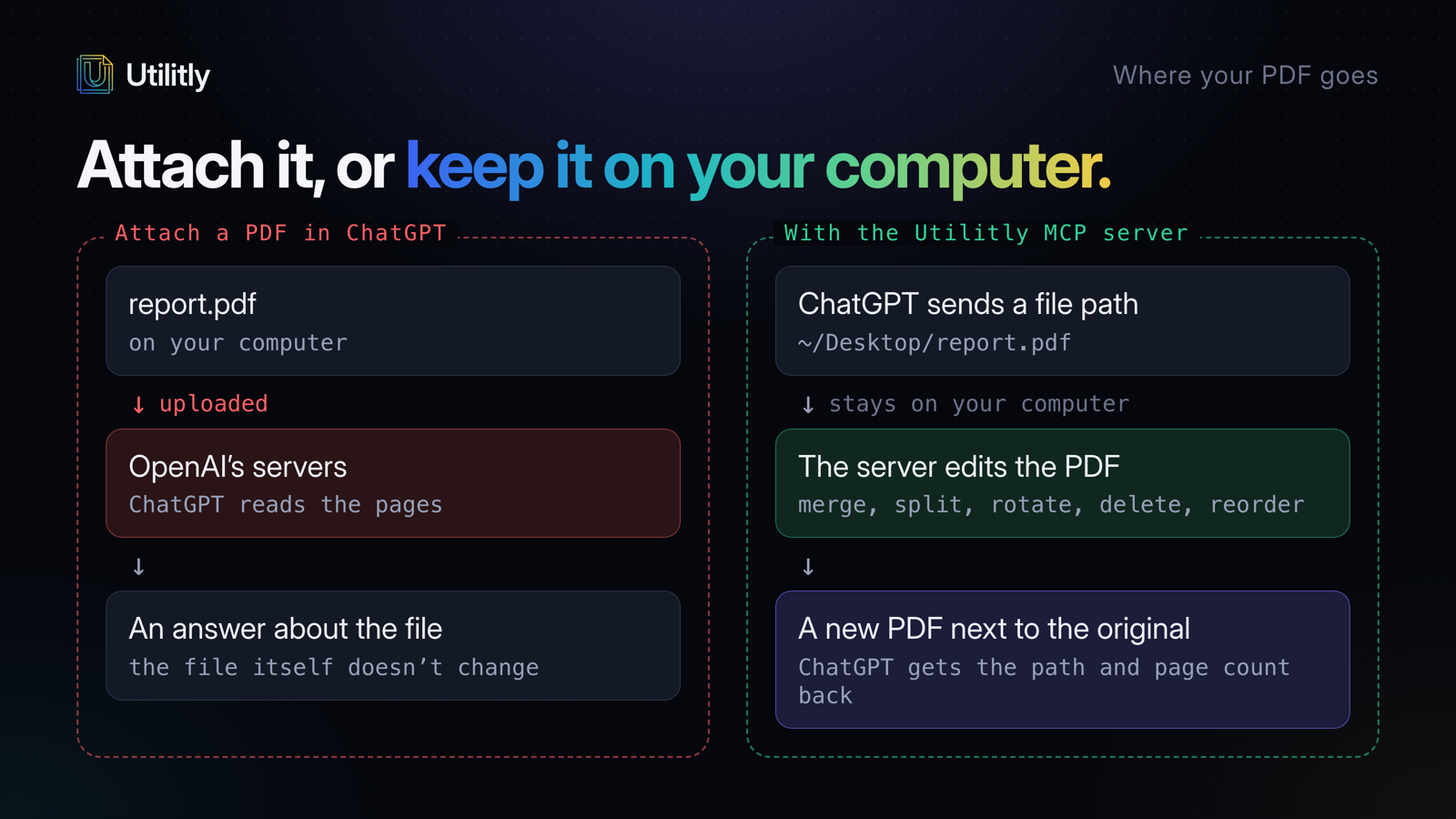
Your conversation still goes to OpenAI as usual. That includes whatever you type, file paths included, and each tool's short reply: the paths it wrote, page counts and file sizes. The pages themselves stay on your computer. The server has no network code, and a test in its public repository blocks every way to reach the network, then runs all eight tools to show they still work.
What is ChatGPT's file upload limit?
OpenAI's help center lists 512 MB per file, and about 2 million tokens of text for a document such as a PDF. There are also limits on how many files you can upload in a few hours, and they're tighter on the free plan. OpenAI changes these, so check its File Uploads FAQ for the current numbers.
Editing with the MCP server doesn't count against any of this, because nothing is uploaded. The server has its own safety limits instead: one request can add at most 10,000 pages, and one split writes at most 1,000 files (or one per page for longer PDFs). A mistaken request, like a million copies of a page, is refused before anything is built. If a PDF is too large to attach for reading, split it and attach only the part you need.
Does ChatGPT keep the PDFs you upload?
Files you attach can stay until you delete them. OpenAI's help center says files uploaded in a chat are saved to your Library where Library is available, and deleting the chat doesn't delete them; you remove them from the Library yourself. A deleted chat is removed from your account right away and from OpenAI's systems within 30 days, unless OpenAI has to keep it longer for security or legal reasons. Files added to a custom GPT or a project stay until you delete the GPT or project. The details are in How ChatGPT retains files and chats.
With the Utilitly server there's no uploaded copy to keep. ChatGPT's record of the conversation holds the file paths and page counts, under the same rules as any other chat.
How do you add an MCP server to ChatGPT?
In the ChatGPT desktop app, open Settings, then MCP servers, then Add server. Choose STDIO, enter the command npx with the server's arguments, then save and restart. You need Node.js 22 or newer; the first run downloads the server through npx. This doesn't work on chatgpt.com in a browser, because the website can only connect to MCP servers on the internet.
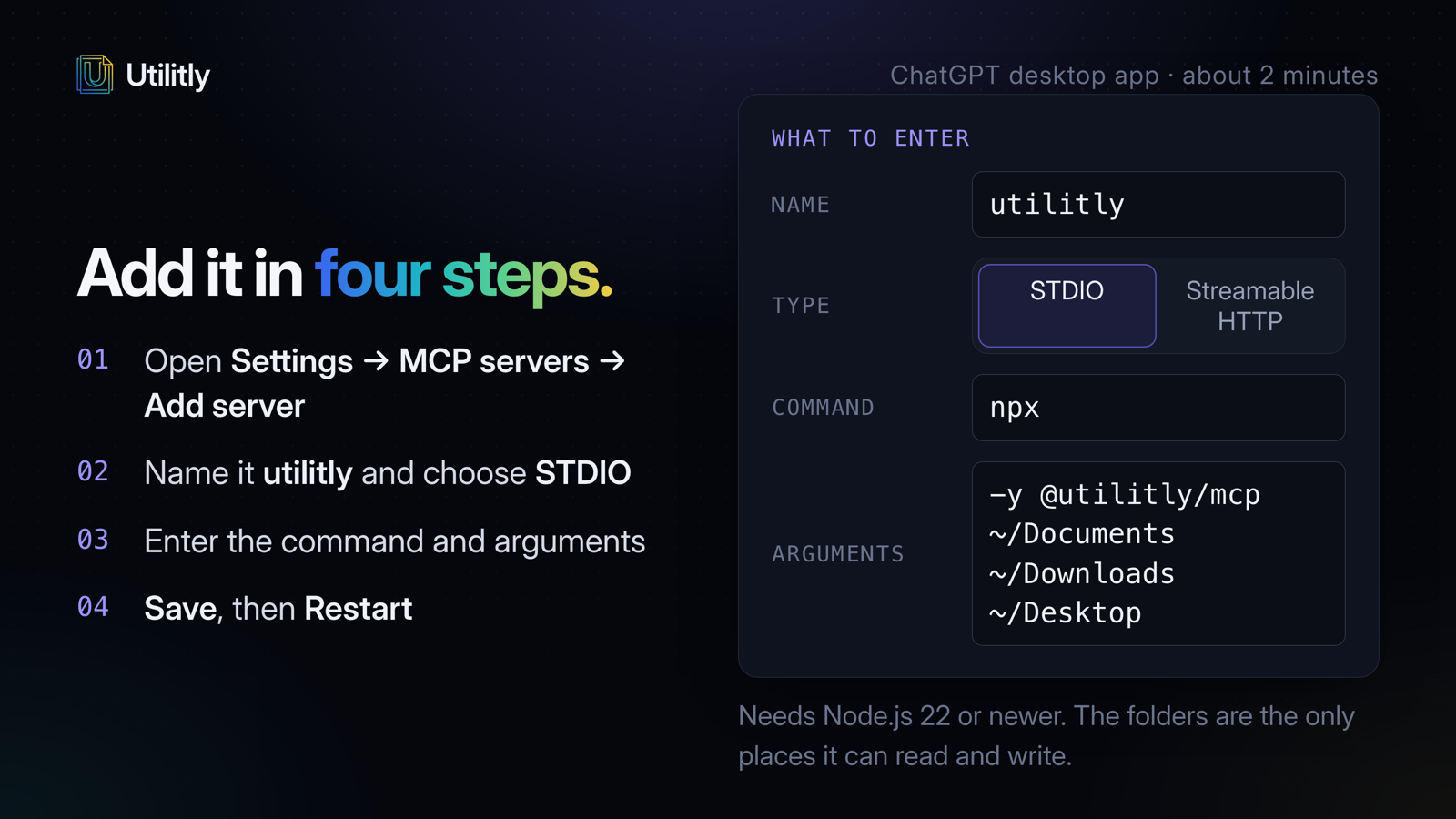
- Open the MCP settings. In the ChatGPT desktop app, open Settings, select MCP servers, then select Add server.
- Name it and choose STDIO. Call it utilitly and choose STDIO, the type for a server that runs on your computer.
- Enter the command and arguments. The command is npx. The arguments are -y @utilitly/mcp, then the folders it may use: ~/Documents ~/Downloads ~/Desktop.
- Save and restart. Save the server, then select Restart.
The folders at the end are the only places the server can read or write, and that check runs after symlinks are resolved. Change them to wherever your PDFs live. Then ask in plain words, with full paths:
- "Merge ~/Downloads/march.pdf and ~/Downloads/april.pdf."
- "Delete the blank page 3 from ~/Desktop/scan.pdf."
- "Split ~/Documents/handbook.pdf into pages 1-12, 13-30 and 31 to the end."
- "Pages 2 to 4 of ~/Desktop/scan.pdf are sideways; turn them the right way up."
- "How many pages does ~/Documents/contract.pdf have, and is it locked?"
How do you add an MCP server to Codex?
Run one command in a terminal: codex mcp add. Codex and the ChatGPT desktop app share one MCP setup, stored in ~/.codex/config.toml, so adding the server to either one adds it to both.
codex mcp add utilitly -- npx -y @utilitly/mcp ~/Documents ~/Downloads ~/Desktop
Everything after -- is the command Codex starts. The same server works in Claude Code, Claude Desktop, Gemini CLI, Cursor and any other app that can run a local MCP server, and the setup for each one is on the Utilitly developers page. The source code is on GitHub under the MIT license.
ChatGPT and Codex are trademarks of OpenAI. Utilitly isn't affiliated with or endorsed by OpenAI. Upload limits and retention rules were checked against OpenAI's help center on October 30, 2026.
Frequently Asked Questions
Can ChatGPT merge PDFs?
Yes, in the ChatGPT desktop app with a PDF MCP server such as Utilitly's. Ask it to merge files by their paths, for example "Merge ~/Downloads/march.pdf and ~/Downloads/april.pdf", and it writes march-merged.pdf next to the first file without changing the originals. On chatgpt.com in a browser, ChatGPT can't merge files on your computer.
Does this upload my PDF to OpenAI?
No. The Utilitly server reads and writes the file on your computer, and ChatGPT only receives file paths, page counts and file sizes. Your messages still go to OpenAI as usual, so anything you type, including file names, is part of the conversation.
Is the Utilitly PDF MCP server free?
Yes. It is open source under the MIT license, with no account, no API key and no daily limit. You need Node.js 22 or newer, which is also free.
Does it work in Claude, Gemini CLI and Cursor too?
Yes. Any app that can start a local (stdio) MCP server can use it, including Claude Code, Claude Desktop, Codex, Gemini CLI and Cursor. The setup for each one is on utilitly.com/developers.