How to Duplicate a PDF Page (Without Uploading the File)
To duplicate a PDF page, select its thumbnail in a page organizer, set how many copies you want, and place them after the original or at the end — all of it in your browser, with no upload. Here is the tested method, plus the form-field trap that silently breaks fillable PDFs.
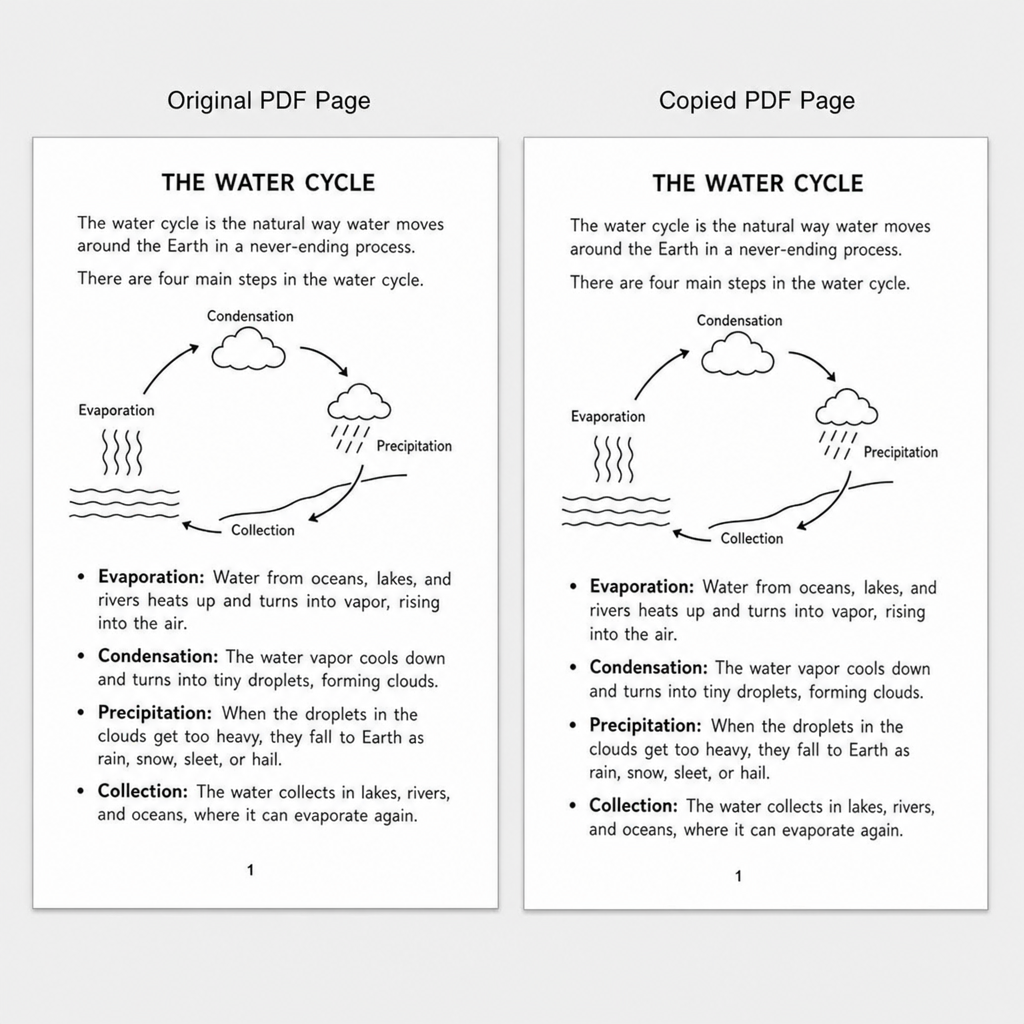
To duplicate a PDF page, open the document in a page organizer, select the page's thumbnail, choose how many copies you want, and place them after the original or at the end. Underneath, that single command copies the page and splices it back into the document — the same thing you can do by hand with an extract, a merge and a reorder. Either way it works in any browser without installing anything or sending your document to a server. The whole point is to copy at the page level — not to select the text and images and paste them onto a blank page, which is where most people lose the layout.
Duplicating a page is useful whenever you need the same sheet twice: a signature page for a second signer, a blank form so two people can each fill one, a repeated ticket or badge on a print run, a worksheet you want to hand out four times, or an original layout you want to keep untouched while you experiment on the copy. It is a small operation that is oddly hard to find, because almost every PDF app buries it inside a page-organization view rather than the main editing toolbar.
Duplicating a page vs. duplicating the file
Worth separating these two, because the search phrases blur together. How to duplicate a PDF usually means making a second copy of the whole document — that is a right-click and "Duplicate" in your file manager, and nothing in this guide applies. How to duplicate a PDF page — or, as it is more often typed, duplicate PDF page — means adding another copy of one page inside the same document, so a four-page file becomes a five-page file. Everything below is about the second one.
How to duplicate a page in PDF files in your browser
The direct route is Utilitly's Duplicate PDF Page tool: drop the file in, click the thumbnails of the pages you want copied, set how many copies of each, and choose whether they land directly after the original or grouped at the end. It runs locally with pdf-lib, an ordinary JavaScript library, so the document is read and rebuilt on your own machine, and it tells you up front if your file has form fields that a copy cannot carry.
It is worth knowing the manual route as well, because it is what any page organizer is doing underneath, and it is the fallback when a tool you are stuck with has no duplicate command:
- Extract the page into its own file. Open Split PDF, drop in your document, and type the single page number you want to copy into the pages field — just
2, not a range. The button relabels itself to "Extract 1 page". Click it and download the result; you now have a one-page PDF holding an exact copy of that page. - Merge that page back into the original. Open Merge PDF and add both files — your original document and the one-page extract you just downloaded. The merger does not deduplicate, so the extracted page is treated as a genuine second document and appended to the end. Click Merge and download. Your four-page file is now five pages, with the duplicate sitting last.
- Move the duplicate where it belongs. Open Reorder PDF Pages, load the merged file, and drag the last thumbnail into position — or focus a page and press Alt with the left and right arrow keys to step it through the sequence, which is more precise than dragging. Each thumbnail shows both its new position and its original page number, so you can confirm the copy landed where you meant it to. Click "Save new order" and download.
Three tabs is clumsy next to one button, which is exactly why the dedicated tool above exists — but the sequence is worth understanding, because it is what every page organizer does internally and it is the fallback when the tool in front of you has no duplicate command. Either way the document is never transmitted anywhere, which matters more than convenience the moment the file is a contract, a medical form, a payroll sheet or anything else you would not email to a stranger.
What the test actually produced
We ran the exact sequence above on the ALPHA/BRAVO/CHARLIE/DELTA file, duplicating page 2 and placing the copy directly after the original. Here is what came out at each stage, read back out of the finished files rather than taken from the interface:
| Stage | Pages | Page sequence |
|---|---|---|
| Original document | 4 | ALPHA · BRAVO · CHARLIE · DELTA |
| After Split (page 2 extracted) | 1 | BRAVO |
| After Merge | 5 | ALPHA · BRAVO · CHARLIE · DELTA · BRAVO |
| After Reorder | 5 | ALPHA · BRAVO · BRAVO · CHARLIE · DELTA |
Across all three steps, the only outbound requests the browser made were to analytics and the sign-in provider. No request carried the PDF. That is the part you can check yourself rather than take on trust: open your browser's Network tab before you start, run the whole sequence, and watch that nothing leaves with your file attached to it.
The form-field trap nobody warns you about
This is the one result worth reading twice. We repeated the entire workflow on a fillable PDF — two pages, each carrying a real text field with a value already typed into it — and then inspected the output.
The duplicated page looked perfect. The field box was still drawn in the right place with the right text visible. But the document's AcroForm dictionary, the catalog entry that tells a PDF reader "these are the interactive form fields in this file," was gone. The extracted one-page file had zero registered fields, and so did the merged five-page result. The field widget survived as a drawing on the page; the interactivity did not.
| File | AcroForm in catalog | Registered fields | Widgets still on the page |
|---|---|---|---|
| Original fillable PDF | Yes | 2 | 1 per page |
| Extracted single page | No | 0 | 1 |
| Merged result | No | 0 | 1 per page |
So if the page you want to duplicate has fillable fields, this browser workflow will hand you back a flattened-looking document rather than a working form. That is a fine outcome when you wanted a static copy for printing, and the wrong outcome when you wanted a second blank form for someone to type into. For a working fillable duplicate, you need an editor that rebuilds the AcroForm as it copies — which in practice means a desktop PDF application.
And the trap on the other side: duplicated fields share one value
Here is the flip side, which catches people using editors that do preserve forms. In the PDF specification, a form field and its on-page appearance are two different objects: one field can own several widgets scattered across the document. When an editor duplicates a page, it frequently copies the widget while pointing it back at the same field. We built exactly that case to confirm the behaviour — one field named applicant.name, two widgets on two pages — and the file reads back as a single field with two widgets and one shared value.
In practice that means typing a name on the duplicated page fills the identical box on the original, because there is only one field underneath both. Two people cannot each complete their own copy. If your reason for duplicating a page in PDF form documents is to collect separate answers, check this before you distribute the file: fill one field, then scroll to the other and see whether it filled itself in too. If it did, the fields need renaming, not re-copying.
Duplicating a page in desktop editors
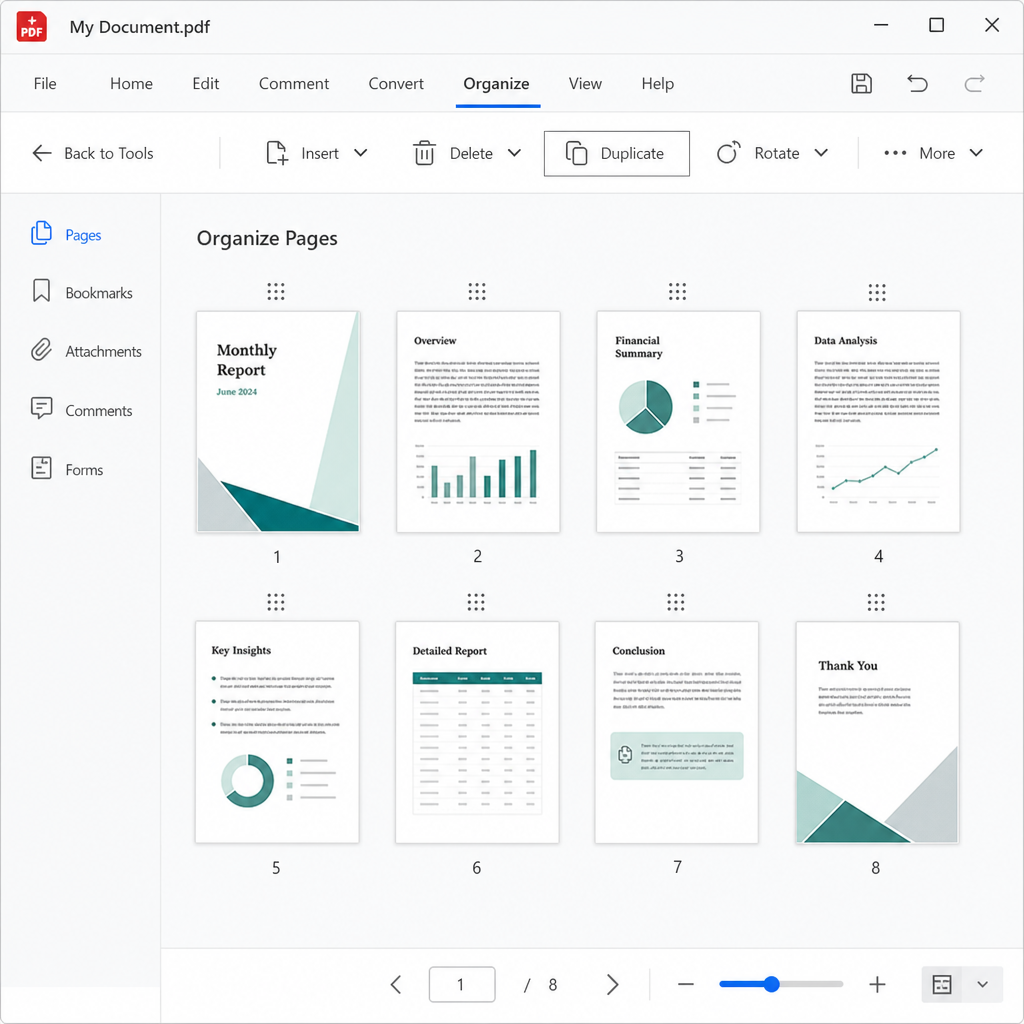
A representative desktop editor's page-organization view — not Utilitly, which has no single duplicate command. This is the kind of screen the Duplicate option hides in.
If you have a full desktop editor, the operation is a single command instead of three. The mechanics differ by app, but the pattern is consistent enough to recognise:
- Find the page-organization view, not the content editor. Depending on the app it is called Organize Pages, Page Manager, Thumbnails, or Arrange. Duplicating from the main editing toolbar is usually not possible, which is why the feature feels hidden.
- Select the page thumbnail — the whole page, not its contents. Then look for a Duplicate command in the right-click menu, or drag the thumbnail while holding a modifier key (typically Control on Windows, Option on macOS) to copy rather than move.
- Watch the insertion marker as you drag. Dragging without the modifier moves the page instead of copying it, and the difference is easy to miss until the original vanishes from its old position.
We have not independently tested these specific desktop applications, so treat the exact key combinations as a starting point and confirm against your app's own documentation.
The print-to-PDF workaround
If your editor genuinely offers no duplicate command, some print dialogs let you enter a page more than once in a custom range — a range like 2,2,2 producing three copies of page 2 in the exported file, which you can then merge back into the main document. Support for repeated page numbers varies a lot between print dialogs, so test it on a throwaway file first. Even where it works, printing to PDF re-renders the page rather than copying it, which is the fastest way to lose form fields, links, bookmarks and layers in one move. Use it as a last resort on simple, static documents.
Getting the duplicate into the right position
Placement is where a duplicated page quietly goes wrong. Whichever tool you use to duplicate page in PDF documents, the copy exists, the page count is correct, and the sequence is still nonsense. Most workflows want one of four placements:
- Immediately after the original — the default for forms, worksheets and any layout you are about to edit on the copy while keeping the untouched version beside it.
- At the end of the document — for appendices, collected extra copies, or repeated templates that follow the main content. This is where the merge step leaves the copy anyway, so you can skip the reorder entirely.
- At a specific position — for packets, applications and manuals where page sequence is part of the meaning.
- Grouped with other duplicates — when you copied a range and want the copies to stay in their original relative order.
Verify with thumbnails, not with the page count. A count of five tells you the duplicate exists; only the thumbnail strip tells you it landed in the right section. In the reorder tool each cell keeps showing its original page number underneath its new position, which makes an out-of-place copy obvious at a glance.
Duplicating a page range
A single page is straightforward. A range needs more care, because the copies have to stay in order relative to each other. The browser workflow handles this well: extract the whole range in one pass — 4-6 in the split field rather than three separate extractions — and the resulting file preserves the internal order. Merge that multi-page extract back in, and pages 4, 5 and 6 arrive as a block at the end, still in sequence, ready to move together.
Extracting the pages one at a time and merging three separate files is where ranges get scrambled, since each merge is a separate ordering decision. One extraction, one merge, one reorder is both faster and harder to get wrong. If you are duplicating a range in a long document, save the merged file under a new name before you start reordering, so a messy drag costs you a step rather than the whole document.
Check these before you save
A duplicate that looks right can still be wrong in ways that only surface at the printer or in the recipient's inbox. Run through this before the file leaves your hands:
- Page order — scroll the thumbnails and confirm the copy is where you intended, not just that the count went up.
- Form behaviour — if the page had fillable fields, click into them on the duplicate. If nothing happens, the form was flattened. If typing into one also fills the original, the two widgets share a field.
- Visual match — zoom in on the copy and the original side by side and check the page size, margins and images agree.
- Links and bookmarks — link annotations attached to a page travel with it, but a PDF's outline lives in the document catalog and is not carried over when pages are copied into a rebuilt document. A bookmarked PDF comes back correctly ordered with no outline.
- File name — save the result under a new name so the original is still there if the sequence turns out wrong.
- Print preview — for print work, check orientation, page size and total count before you send it.
The mistakes that cost the most time
Moving instead of copying. The single most common one. You drag a thumbnail, the page appears in its new spot, and the original is gone from its old position — you moved it. Undo immediately and repeat with the modifier key held, or use an explicit Duplicate command instead of dragging.
Copying content instead of the page. Selecting the text and images on a page and pasting them onto a blank page is not a duplicate. It misses background elements, hidden layers, form fields, embedded graphics and anything positioned outside the text flow, and it almost never reproduces the spacing exactly. Work from thumbnails, always.
Assuming the copy is interactive. Covered above, and worth repeating because the failure is invisible: a flattened form field still looks like a form field. Click it.
Stopping at the first result. Most guides on how to duplicate PDF page content stop at "open a page organizer," which is only useful if you already own one. The browser route below needs nothing installed, and the desktop route is a single command — pick on the file, not on the first tool you land on.
Uploading a sensitive file to whatever tool ranked first. Plenty of online PDF organizers do have a genuine one-click duplicate — and they get it by uploading your document to their server to do the work. That is a perfectly reasonable trade for a takeaway menu and a bad one for an employment contract. If the file is confidential, use software that runs on your device, or a browser tool where you can verify in the Network tab that nothing was transmitted.
Final takeaway
The reliable way to duplicate a PDF page is to copy at the page level rather than copying what is drawn on it. That is one click in Duplicate PDF Page, and by hand it is Split, Merge and Reorder — neither of which sends the document anywhere. Work from a copy, check the placement in the thumbnails rather than the page count, and if the page carries fillable fields, click into them on the duplicate before you trust it.
Frequently Asked Questions
How do I duplicate a PDF page without changing the original?
Use a page-level duplicate rather than copying the page contents, and the original is never touched: the tool builds a brand-new document and hands it to you as a download, leaving the file on your device exactly as it was. Utilitly's Duplicate PDF Page tool works this way, as does the manual extract-merge-reorder route. In a desktop editor, use the Duplicate command in the page-organization view rather than dragging a thumbnail, which moves the page instead of copying it.
Can I duplicate a PDF page without uploading the file anywhere?
Yes. Utilitly's Duplicate PDF Page tool — and the Split, Merge and Reorder tools behind the manual route — all run in your browser with pdf-lib, so the document is read from your device, rebuilt in the tab, and downloaded again without being transmitted. We ran the full duplication with the network captured and no request carried the PDF. You can confirm this yourself by opening the Network tab before you start.
Why does typing in my duplicated form field also fill the original?
Because both boxes belong to the same field. In the PDF format a form field and its visible box are separate objects, and one field can own several boxes across the document. When an editor duplicates a page it often copies the box while still pointing it at the original field, so there is only one value underneath both. The fix is to rename the field on the copy so the two are independent — duplicating the page again will not help.
Does duplicating a page in a fillable PDF keep it fillable?
No, and the tool warns you before you run it when your file has fields. We tested a fillable PDF and the output had no registered form fields at all: the boxes were still drawn on the page and their values still visible, but the AcroForm entry that makes them interactive was not carried into the rebuilt document. That is fine if you wanted a static copy to print, and wrong if you wanted a second blank form. For a working fillable duplicate, use a desktop editor that rebuilds the form as it copies.
How do I duplicate several pages at once?
Select every page you want in one pass. In Duplicate PDF Page, click each thumbnail in the range and set the copy count once — it applies to all of them, and the copies keep their relative order. On the manual route, extract the whole range in a single pass (something like 4-6 in the split tool's pages field) rather than one page at a time; extracting each page separately and merging several files is what scrambles the order.
What is the difference between duplicating a PDF and duplicating a PDF page?
Duplicating a PDF makes a second copy of the whole file, which you do in your file manager and which needs no PDF tool at all. Duplicating a PDF page adds another copy of one page inside the same document, turning a four-page file into a five-page one. Search results mix the two constantly, but only the second requires a page-organization tool.