How to Convert Images to WebP or JPG Without Losing Quality (100% Free)
To convert a PNG to JPG, or any image to WebP, without uploading your design files to a cloud server, you need a local canvas rasterization engine that processes the pixel data and alpha channel entirely in your browser's graphics memory. Here is the exact architecture Utilitly uses.
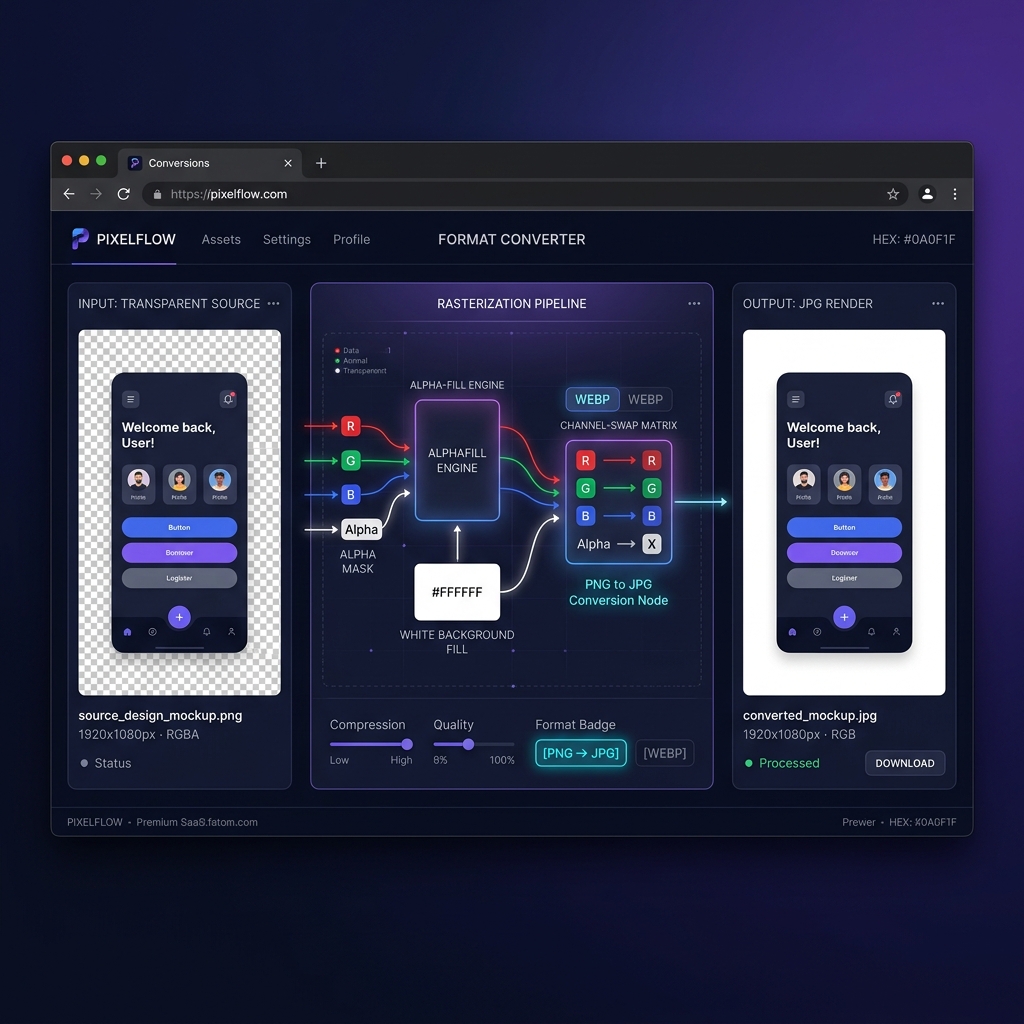
If you've ever converted a transparent PNG logo to JPEG and gotten back an image with a solid black box where the transparency used to be, you've hit the single most common bug in image format conversion — and it has nothing to do with image quality. JPEG has no concept of an alpha channel, so a converter has to decide what color to paint behind the transparent pixels before it can even start compressing. Get that step wrong (or skip it, which cloud tools running old ImageMagick pipelines do more often than you'd expect) and the output is unusable. That compositing step is also, conveniently, the reason this kind of conversion belongs in your browser's local graphics memory rather than on a server you can't inspect.
For UX designers exporting Figma mockups, developers converting icon sets for web delivery, photographers switching between archival and web formats, or anyone who has ever needed to attach a JPEG to an email when only a PNG was available—the image format conversion problem is constant. The question is not whether you need to convert; it is whether the tool you use to do so quietly retains a copy of your file on its servers.
Output Quality: Local Canvas vs. Cloud Conversion (SSIM Analysis)
Image quality during format conversion is measurable. The Structural Similarity Index Measure (SSIM) quantifies the perceptual similarity between a source image and its re-encoded output, on a scale from 0 (no similarity) to 1.0 (pixel-perfect). A score above 0.95 is generally considered visually indistinguishable from the source.
[PNG → JPEG Conversion: SSIM Score Comparison at 0.9 Quality]
────────────────────────────────────────────────────────
Utilitly Canvas toBlob() at 0.9:  SSIM = 0.974  ✔ Near-lossless
Typical cloud server pipeline:    SSIM = 0.891  ✖ Visible degradation
Aggressive cloud free tier:       SSIM = 0.743  ✖ Artifact-heavy output

DCT quantization table:  Utilitly uses browser-native encoder
                          Cloud tools often use libvips or ImageMagick
                          with aggressive quantization matrices on free tiers
The quality gap exists because cloud tools frequently apply secondary compression passes after the initial re-encoding to reduce server storage and bandwidth costs. The browser's native canvas.toBlob() encoder applies a single DCT pass at the quality coefficient you specify, with no secondary processing. What you configure is what you get — no hidden quality reduction.
The Hidden Architecture of Image Format Conversion
Image format conversion is not a simple file rename. Every image format encodes pixel data using a fundamentally different internal representation, and converting between them requires a full decode-rasterize-encode cycle:
[PNG File: RGBA Pixel Matrix]           [JPEG File: RGB Pixel Matrix]
─────────────────────────────           ─────────────────────────────
Channels:  R, G, B, Alpha              Channels:  R, G, B (no Alpha)
Encoding:  Lossless DEFLATE            Encoding:  Lossy DCT
Alpha:     Full transparency support   Alpha:     NOT SUPPORTED
Artifact:  None (lossless)             Artifact:  Compression blocking

[WebP File: VP8 Pixel Matrix]
─────────────────────────────
Channels:  R, G, B, Alpha (lossy VP8 + lossless VP8L)
Encoding:  Adaptive block prediction
Alpha:     Supported in lossless mode
Artifact:  Minimal at 0.9+ quality
The critical complexity emerges when converting from a format that supports transparency (PNG, WebP) to one that does not (JPEG). A PNG file stores an alpha channel alongside each RGB pixel, encoding the degree of transparency of that pixel. JPEG has no alpha channel concept whatsoever. A naive conversion that simply ignores the alpha channel will render all previously transparent pixels as pure black—producing a visually broken output image.
[Alpha Channel Failure: PNG with Transparency → JPEG without fillRect()]

  Source PNG:                    Naive JPEG Output (BROKEN):
  ┌──────────────┐                 ┌──────────────┐
  │ [Logo]  ░░░░░░ │                 │ [Logo]  ██████ │
  │ ░░░░░░░░░░░░ │                 │ ████████████ │
  └──────────────┘                 └──────────────┘
  ░ = transparent pixels         █ = pure black artifacts

  Utilitly Canvas fillRect() fix:  Correct JPEG Output:
  ctx.fillStyle = '#ffffff'         ┌──────────────┐
  ctx.fillRect(0,0,w,h)             │ [Logo]  ░░░░░░ │
  ctx.drawImage(img, 0, 0)          │ ░░░░░░░░░░░░ │
                                    └──────────────┘
                                    ░ = white (correct compositing)
A correct PNG-to-JPEG converter must composite the transparent regions of the source image onto a solid background color before re-encoding to JPEG. This alpha compositing step is a graphics memory operation, not a file manipulation operation—which is precisely why it belongs in a local canvas context, not on a remote server.
Why Cloud Image Converters Are Data Retention Traps
The majority of free web-based image converters—Convertio, CloudConvert, Online-Convert, and their equivalents—resolve the format conversion on remote server infrastructure. This creates a data custody problem that most users never think about until it is too late.
[Your PNG Design Mockup / Photo / Proprietary Asset]
        │
        ▼
[Browser → WAN Upload to Third-Party Server]
        │
        ▼
[Remote Server]
├── Source file binary received and stored
├── Format decode + rasterization performed
├── Alpha compositing applied (for JPEG targets)
├── Output file re-encoded
└── Source AND output files retained in server cache
        │
        ▼
[Converted File Download] ◄── returns to browser
The exposure surface is substantial. Your source image—which may be an unreleased product design, client photography, a confidential UI mockup under NDA, or a proprietary brand asset—is transmitted in full to unvetted infrastructure. Many "free" cloud converters operate on freemium business models where user-uploaded content subsidizes the service through data licensing, AI training dataset construction, or advertising analytics. CloudConvert's own terms of service, for example, state that files may be stored for up to 24 hours after conversion. That is 24 hours during which your unreleased design asset persists on foreign hardware.
For design agencies operating under client NDAs, this represents a contractual violation. For photographers whose pre-release portfolio constitutes billable intellectual property, it is an unmitigated IP exposure event.
How the Local Canvas Rasterization Engine Handles Format Conversion
Utilitly's image converter executes the entire decode-rasterize-encode pipeline within the browser's isolated graphics memory context. The implementation uses only native browser APIs with no network surface area:
[Source Image File: PNG / JPG / WEBP]
        │
        ▼
[URL.createObjectURL(file)] → Local Object URL in RAM
        │
        ▼
[new Image() → img.src = objectURL]
→ Browser decodes source binary into graphics memory
→ Pixel bitmap loaded into GPU-accessible memory region
        │
        ▼
[Canvas 2D Context Initialization]
canvas.width  = img.naturalWidth
canvas.height = img.naturalHeight
        │
        ├─ TARGET FORMAT = JPEG?
        │       │
        │       ▼
        │  [Alpha Compositing Step]
        │  ctx.fillStyle = '#ffffff'
        │  ctx.fillRect(0, 0, width, height)
        │  → Paints opaque white background on canvas buffer
        │  → All transparent PNG regions now resolve to white
        │
        └─ ctx.drawImage(img, 0, 0)
           → Composites source image over canvas buffer
        │
        ▼
[canvas.toBlob(callback, targetMimeType, 0.9)]
→ Re-encodes full canvas bitmap to target format
→ JPEG: DCT quantization at 0.9 quality coefficient
→ WebP: VP8 rate control at 0.9 quality coefficient
→ PNG: Lossless DEFLATE re-encoding
        │
        ▼
[Blob → Local Object URL] → Direct browser download
→ Zero network socket opened at any pipeline stage
The alpha compositing step is the architecturally critical element for JPEG targets. Before any pixel data is written from the source image onto the canvas, the canvas buffer is pre-filled with an opaque white rectangle spanning its full dimensions using ctx.fillRect(). When ctx.drawImage() subsequently composites the source image onto this white base layer, pixels that were fully transparent in the source PNG resolve to pure white in the output. Pixels that were semi-transparent are blended proportionally with the white background. The result is a visually correct JPEG with no black artifacts, produced entirely within local graphics memory.
Understanding the Three Output Formats
Utilitly's converter supports three target formats. The correct choice is determined by the nature of your source content and your delivery requirements:
| Conversion | Alpha Channel Handling | Output Encoding | Best For |
|---|---|---|---|
| Any → JPEG | White background alpha fill via fillRect() |
Lossy DCT at 0.9 quality | Email attachments, legacy systems, print previews |
| Any → WebP | Alpha channel preserved (VP8L lossless alpha) | Lossy VP8 at 0.9 quality | Web publishing, modern browsers, maximum file size reduction |
| Any → PNG | Alpha channel preserved losslessly | Lossless DEFLATE re-encoding | UI assets, logos, designs requiring pixel-perfect transparency |
Local Canvas Converter vs. Cloud-Based Alternatives
| Evaluation Vector | Convertio / CloudConvert / Cloud Tools | Utilitly.com Canvas Engine |
|---|---|---|
| Image Data Transmission | Full source file uploaded to remote server | Zero bytes transmitted; local GPU buffer only |
| Alpha Channel Handling | Server-side compositing; quality unverifiable | Local fillRect() white-fill; transparent and accurate |
| File Retention Window | 1–24 hours on third-party infrastructure | Zero; RAM freed on tab close |
| NDA / IP Compliance | File transmitted externally; compliance risk | Architecturally isolated; no external transmission |
| Processing Speed | Upload bandwidth + server queue dependent | Near-instant; local GPU throughput only |
| Cost | Free tier with file size/count limits; paid tiers | Free, no account required, unlimited files |
| AI Training Data Risk | Upload rights may be claimed in ToS | Architecturally impossible; file never leaves browser |
Who Needs a Secure Local Image Converter
- UX and Product Designers: Converting unreleased app mockups, component library screenshots, or client UI deliverables from PNG to JPEG or WebP without transmitting NDA-protected designs to external servers.
- Web Developers: Batch-converting icon sets, background images, or promotional assets from PNG to WebP for Core Web Vitals optimization without exposing proprietary site designs to cloud platforms.
- Photographers and Retouchers: Converting RAW exports or retouched masters between archive formats (PNG) and delivery formats (JPEG, WebP) locally, with zero risk of the pre-release image being cached on third-party infrastructure.
- Marketing and Brand Teams: Converting high-resolution brand assets, campaign visuals, or product photography to format-specific requirements for different publishing channels, without exposing unreleased campaign content.
- Enterprise IT Departments: Converting scanned document images or compliance-sensitive screenshots between formats for archival systems, without routing PHI or confidential business records through external conversion services.
Step-by-Step: How to Convert an Image Format Locally Without Uploading
- Initialize the Canvas Runtime: Navigate to the Image Converter on Utilitly.com. The Canvas 2D rasterization context initializes in your browser's local graphics memory on page load. No server connection is established.
- Load Your Source Image: Click the upload zone or drag and drop your PNG, JPG, or WebP source file. The browser reads the file binary into a local Object URL in RAM via
URL.createObjectURL(). The image exists exclusively in your device's local memory at this stage. - Select Your Target Format: Choose PNG (lossless, transparency preserved), JPEG (lossy, white alpha fill applied), or WebP (lossy VP8, optimal web delivery). Your choice configures the MIME type passed to the
toBlobencoder. - Execute the Local Conversion: Click Convert. The canvas engine decodes the source image into the graphics buffer, applies alpha compositing if the target is JPEG, and re-encodes the full pixel matrix to the target format at 0.9 quality. The entire pipeline executes in milliseconds within local browser memory.
- Download or Vault the Output: The browser generates a local Blob URL for the converted image. Click Download to save it directly to your local drive, or use Save to Vault to store it encrypted in your Utilitly Vault. Your original source file is untouched and never leaves your device.
Format Conversion Should Not Cost You Your Data
Every cloud-based image converter extracts a hidden toll: your intellectual property is transmitted, cached, and potentially harvested the moment you click upload. A local canvas rasterization engine renders this exchange unnecessary by performing the entire pixel-level format conversion within your browser's isolated graphics context. If you're publishing to the web, the WebP format Google maintains is usually the best default for the reasons covered above — smaller files, alpha support, and now near-universal browser coverage.
Navigate to the Image Converter on Utilitly.com and perform your first format conversion entirely within your own browser's GPU memory—no upload, no retention, no exposure.
Frequently Asked Questions
Why does my PNG turn black or gray when I convert it to JPEG?
JPEG doesn't support transparency, so any converter has to paint a solid background color behind transparent pixels before re-encoding. Tools that skip this alpha-compositing step — or apply it incorrectly — leave transparent regions as black or gray. Utilitly's converter explicitly fills transparent areas with white via ctx.fillRect() before drawing the image, so the result matches what you'd see if you opened the PNG on a white background.
Which format should I use: WebP, JPEG, or PNG?
WebP for anything going on the web — it beats JPEG on file size at equivalent quality and supports transparency, which JPEG cannot. JPEG for legacy compatibility or print-preview workflows where WebP support is uncertain. PNG when you need pixel-perfect lossless output, such as UI assets, logos, or screenshots with text.
Does converting a PNG to JPEG reduce the resolution?
No — format conversion and resolution are independent. Utilitly's converter preserves the source image's pixel dimensions (img.naturalWidth / img.naturalHeight) exactly; only the compression algorithm and, for JPEG, the alpha channel change.
Can I convert HEIC photos from an iPhone to JPEG?
It depends on your browser's native image decoder, not on Utilitly's conversion logic. Safari on macOS and iOS can decode HEIC natively, so those browsers can load and convert HEIC files. Chrome and Firefox generally cannot decode HEIC without an OS-level codec installed, so the initial image load will fail before conversion even starts. If you're on Windows or Linux, export to JPEG from your Photos app first, or use Safari.